
This guide walks you through connecting your Webflow site to RankAI so we can publish and manage your SEO blog content. You'll need access to your Webflow dashboard and your RankAI project.
Where to start in RankAI
In your RankAI project, open Settings in the sidebar. Under Site Integration, find Connected CMS and click Configure.
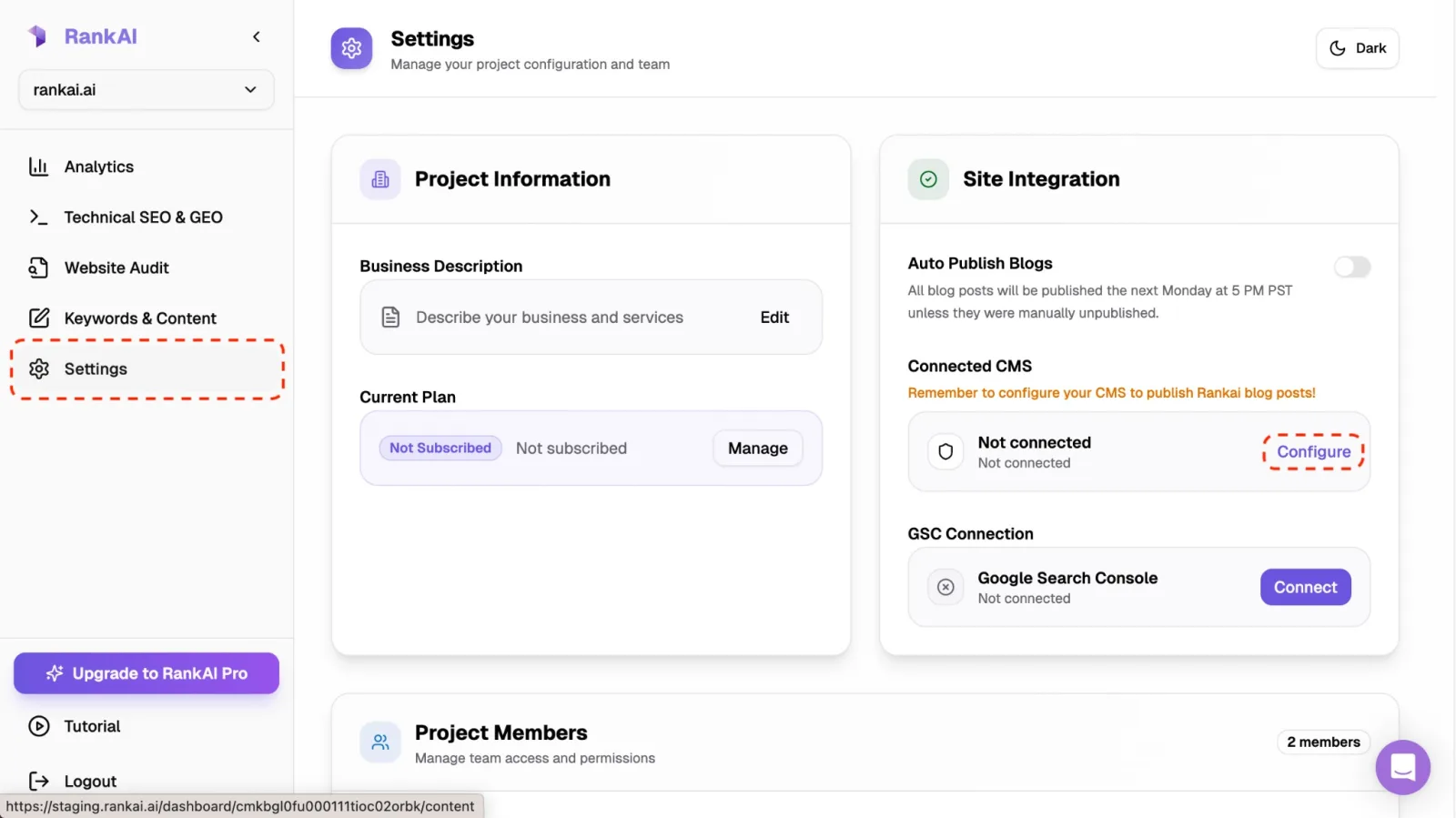
Settings → Site Integration → Configure under Connected CMS.
On the next screen, you'll see All Integrations. Click the Webflow card to continue.
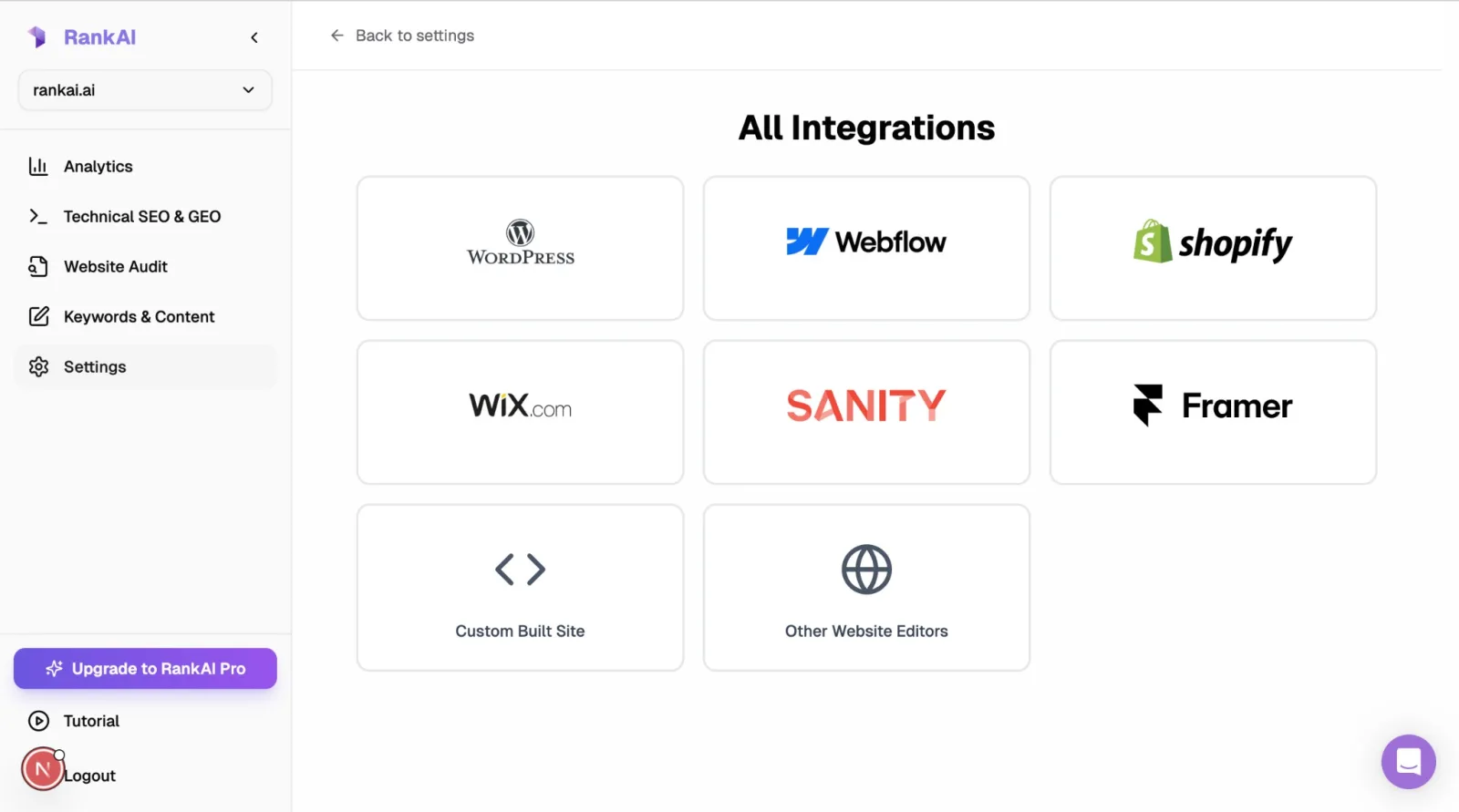
Select Webflow from the integrations list.
Step 1: Access Project Settings
Open your Webflow dashboard and select the project (site) that has your blog. Hover over the site card and click the Settings icon (gear) to open Project Settings.
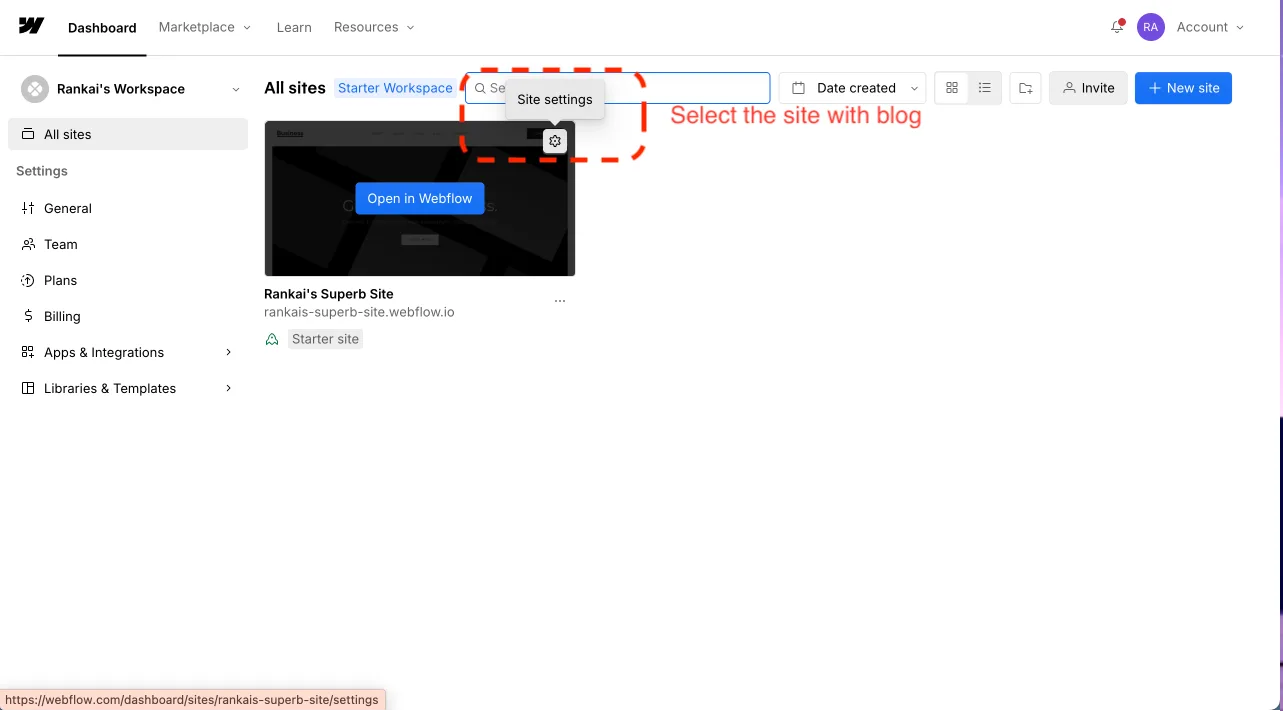
Select the site with your blog and click Site settings.
In the Project Settings sidebar, scroll down and click Apps & Integrations. This is where you'll find the API access section.
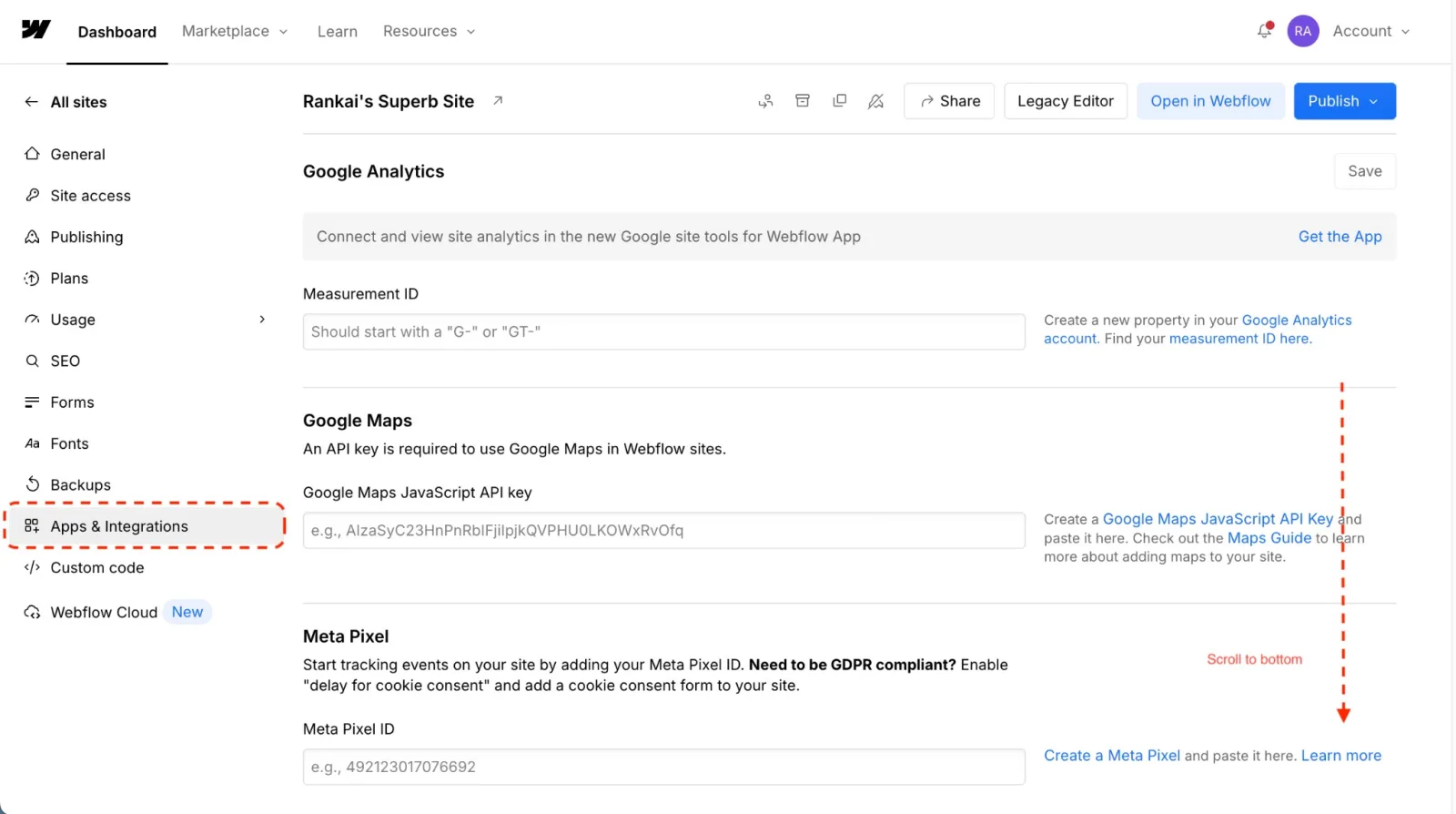
Navigate to Apps & Integrations in the sidebar, then scroll to the bottom.
Step 2: Generate API Token
In the API access section, click Generate API token to create a new token for RankAI.
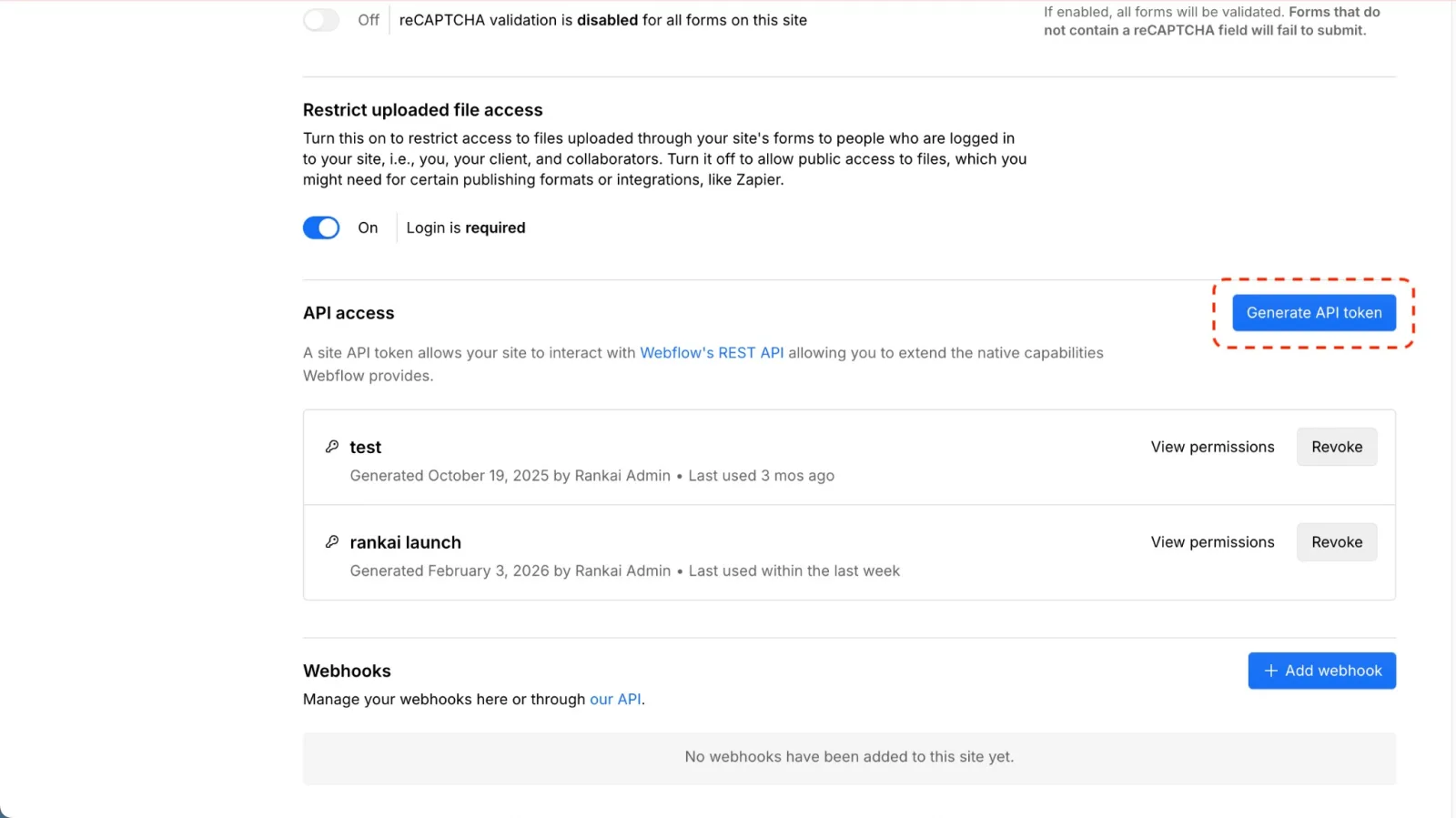
Click "Generate API token" in the API access section.
In the Generate an API Token modal, enter a name for the token (e.g. "Rankai") and configure the required permissions:
- CMS: Read and write (required for publishing blog posts)
- Pages: Read-only (optional)
- Site: Read-only (optional)
Click Generate token to create the token. Copy the token immediately—you won't be able to view it again.
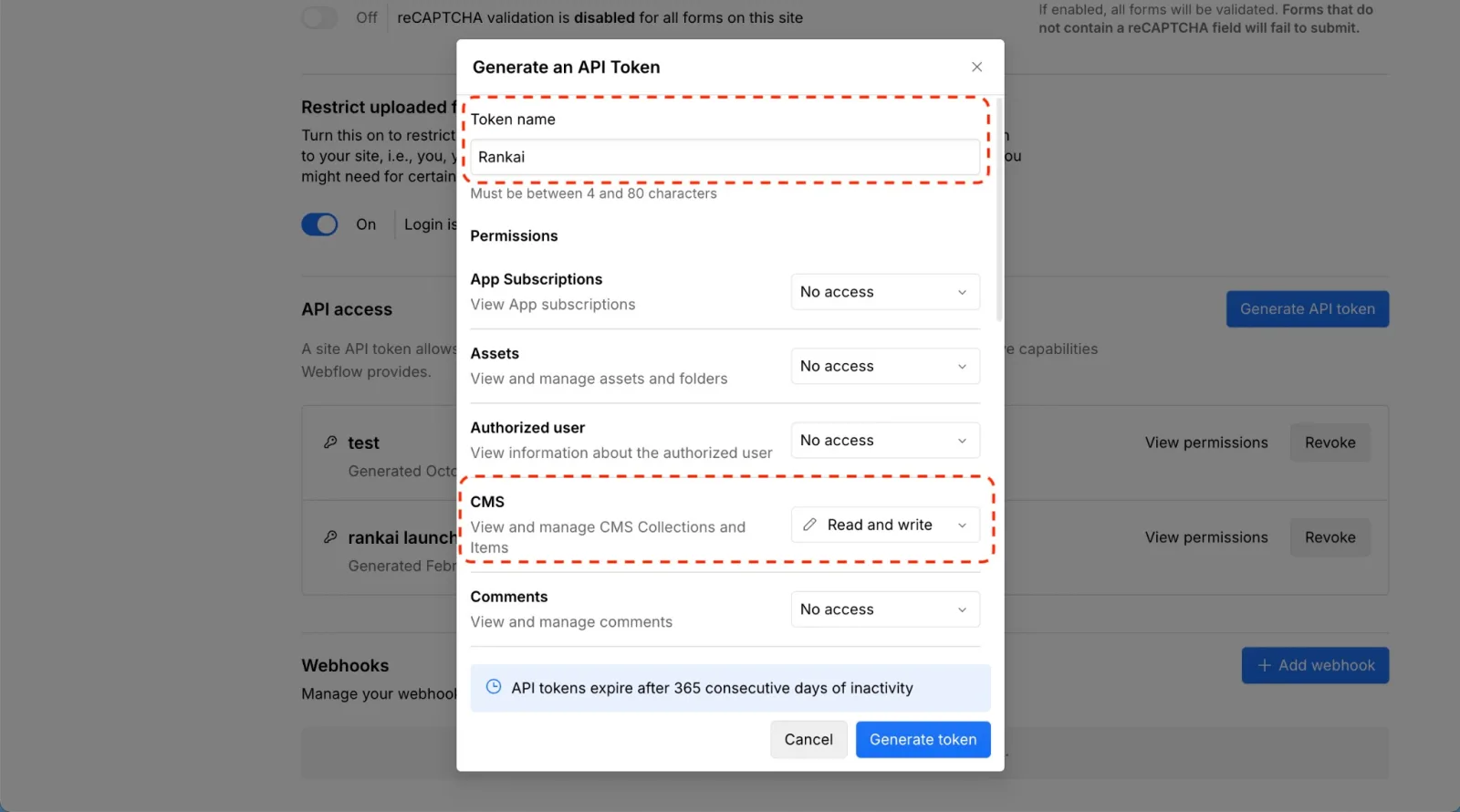
Name your token (e.g. "Rankai") and set CMS to "Read and write", then click Generate token.
Step 3: Connect Token
Back in your RankAI project, open the Webflow integration screen. Paste your API Site Token in the field and click Connect to complete the connection.
Connect Token
Paste your API token below to complete the connection.
API Site TokenAPI Site TokenConnect
After connecting, RankAI will verify the token and load your Webflow site's CMS collections. You'll then configure the collection and field mappings in Step 4.
Step 4: Configure Collection and Field Mappings
Once connected, you'll see the Webflow Configuration screen. Here you'll select which CMS collection to publish to and map RankAI fields to your Webflow fields.
4.1 Select Collection
Use the Collection dropdown to select the CMS collection where blog posts will be published (e.g., "Blog Posts"). The number of fields in the collection is shown on the right.
4.2 Map Fields
Under Field Mappings, map each Webflow field to the corresponding RankAI content. For each field, you can select from the following options:
- Manual input: Enter a custom value manually
- Title: The blog post title
- Description: The meta description / summary
- Body: The full blog post content (HTML)
- Feature Image: The main image for the post
- URL Slug: The URL-friendly slug for the post
- Current Time: The current timestamp when publishing
Map your Webflow fields appropriately. For example:
- Post Body → Body
- Post Summary → Description
- Main Image → Feature Image
- Slug → URL Slug
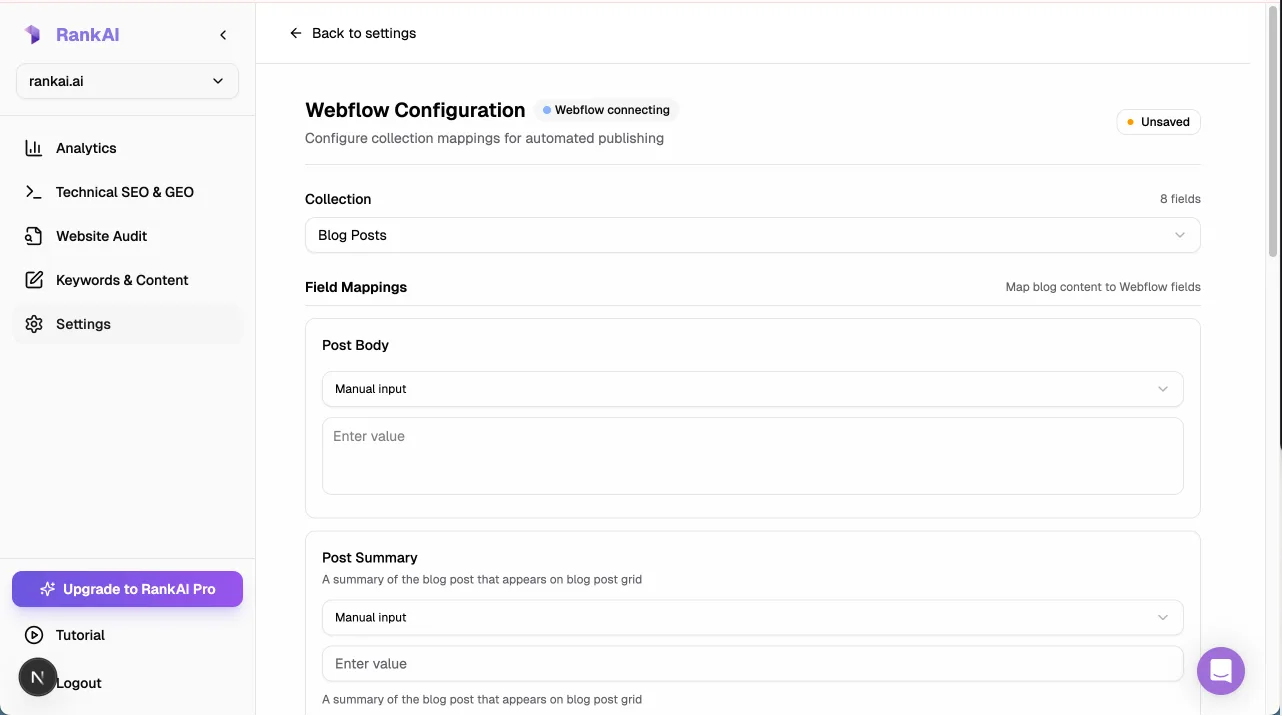
Select your collection and map each field to RankAI content.
4.3 Save Configuration
After mapping all fields, click Save Configuration to save your settings. The status indicator in the top right will change from Unsaved to Saved when successful. Your Webflow integration is now ready for publishing.
FAQ
What if the connection fails?
Double-check that (1) you're using the full API token copied from Webflow, (2) the token has CMS: Read and write permission enabled, and (3) the token hasn't been revoked in your Webflow project settings.
Where can I find or regenerate my API token?
Go to your Webflow project's Settings → Apps & Integrations → API access. You can view existing tokens and their permissions, or generate a new token. If you regenerate, paste the new token into RankAI and reconnect.
What CMS collection should I use?
Select the collection where you want blog posts published. This is typically named "Blog Posts", "Articles", or similar. The collection should have fields for title, content, and slug at minimum.
Where can I get more support?
Contact your RankAI account team or check the help section in your dashboard.